
Installing and Updating BfX
F o r u m
About BfX
Install/Update
Downloads
Excel/VBA settings
Entering formulas
Drag functions
Robert Meijer
Installing and adding an add-in to Excel is easy
Check whether you run a 32-bits implementation of Excel or a 64-bits one. You have to google a bit to find a method that fits your particular Excel version.
For the 32-bits Excel your have to use the BfX.xll. The 64-bit version of Excel 2010 uses BfX64.xll.(what is an .xll file? Should you check it for virusses?)
If would follow the following procedure to install BfX.
- find out if you need the BfX.xll or BfX64.xll add-in.
- download the add-in one
- move the add-in from your download folder to c:\BfX
- Follow the procedure below to tell Excel where to find the add-in
- Activate the add-in
You can put the add-in in another location. In that case a few
of the workbooks you download from this site require do adapt the
visual basic code to point out the add-ins location on your computer.
Using the Installer
Only a few installations require the installer, and mostly only once. You will notice it if you try to include the add-in in Excel. In this case, commonly used auxilary files that BfX shares with other programm are not present on a computer. The installer puts the add-in and the auxilary files from Microsoft on your computer. Checking the installation
The installation can be checked by starting Excel and enter =bfx_help() in a cell. If it responds then all is fine. When technically everything is allright one can start immediately (see right panel on this page) or download the Excel workbooks that illustrate the use of BfX. If you can't install BfX then start the trouble shooting here.
It is not nessecary to know all the ins and outs of add-in installation, but if you would like to know, start here.
Uninstall
To uninstall BfX.xll or BfX64.xll,
you simply delete BfX
from Excels
add-in list, close Excel, and delete BfX.xll or BfX64.xll from your
computer.
Setup procedure
- Determine
automatically the folder you want to
put BfX.xll/BfX64.xll in. Download the Excel2003
workbook or the Excel2007/2010
workbook to find recommended default locations automatically.
These workbooks contain macros. Push the button on the worksheet to
determine your recommended locations. Copy the locations (and paste
them later).
or
simply choose a location
c:/Programs Files/BfX - Download
BfX (< 200kB). Use the
"Save"
button to place it in the folder you have found or created in step 1.
or
You can also download the zipped installer programs for Excel2003, 2007 and 2010 32 bit or Excel2010 64 bit. Extract them in the same folder:
Option 1
you put them in a special folder where you can keep them as long as you use BfX. Then you can unistall BfX from this folder .
Option 2
use a or the default folder and remove this folder afterwards. You have to uninstall BfX via the configuration panel.
Double click BfXSetup.msi or BfXSetup64.msi to install. Move or copy BfX.xll/BfX64.xll to the folder determined in step 1.
- Tell Excel where the .xll
is
Open Excel 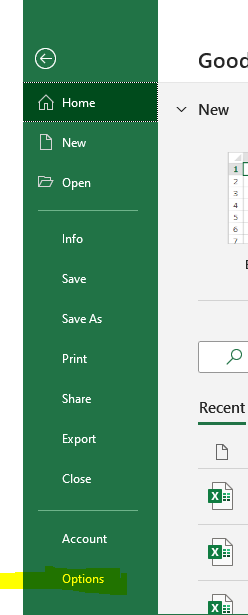
Click Options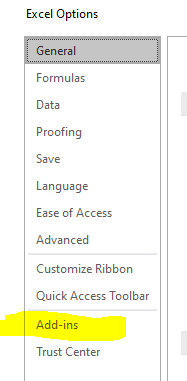
Click Add-ins,
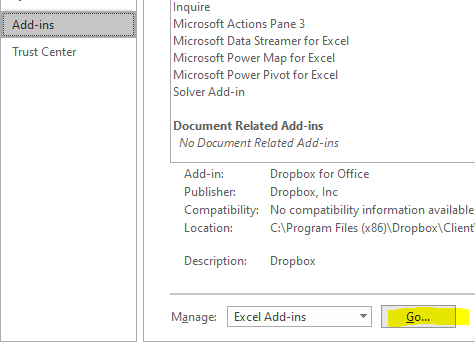
Click Go ...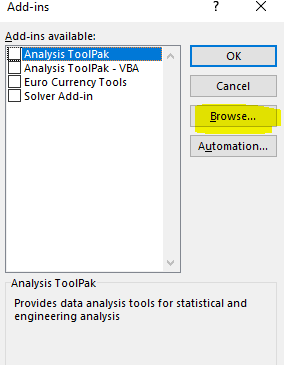
then Browse...
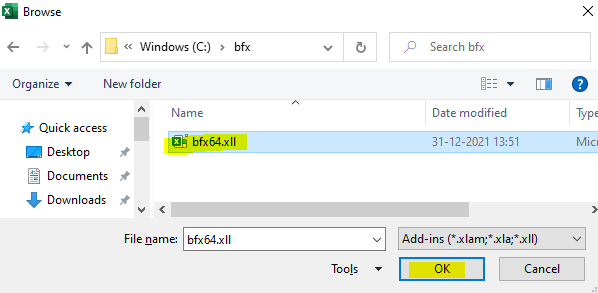
Find bfx(64), then ok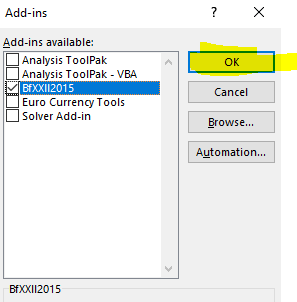
BfXXll2015 shows up and is selected, press OK
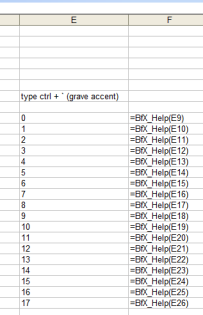
DoneTo check the installation, load an empty worksheet. Enter in the cells of column A 0,1,2,3.... and in column B BfX_Help(A1) etc
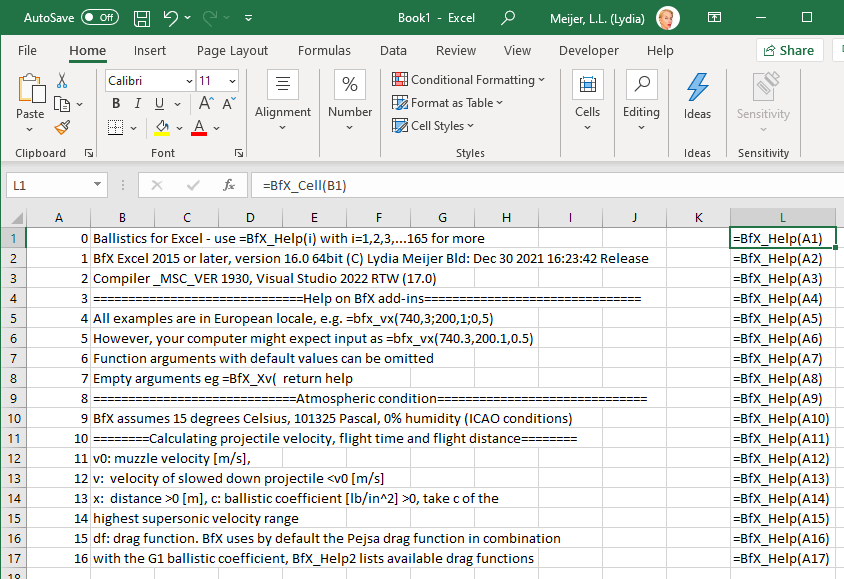
To check the installation
- Create a new worksheet.
- Enter in an empty cell =bfx_help(). BfX is not installed correctly when you get an error.
- To kick start, generate a table as displayed on the right pannel. Use =bfx_help(n) where n=0, 1, 2, ..., to about 100. This generates a list and explanation of BfX functions.
- Additional information can be found via =bfx_help2(n) where n=0, 1, 2, ..., to about 70. With bfx_help2 you generate a list of units and drag functions that is supported.
| AFTER the installation of BfX.xll | |
| To start using BfX withhout reading all the workbooks: | use =bfx_help(n) where n=1, 2, to about 100 |
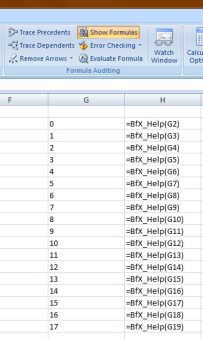 |
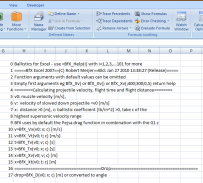 BfX has a built in help facility. Type =bfx_help(n) where n=0...about 100. The input on the left in Excel 2007 generates the output above. Use a fixed font like Courier New for the nicest layout. |
 |
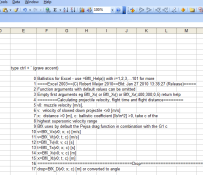 Help in Excel 2003, generated with =bfx_help(n) where n=0, 1,..., 17 |
When the installation goes wrong
Please follow the above procedure carefully. If you did not use the setup file method, use it now. If this does not help either, check the BfX Forum.